
 Klick help
Import, export and backup
Bring your history from another tracker, export a spreadsheet, or keep a full backup.
-
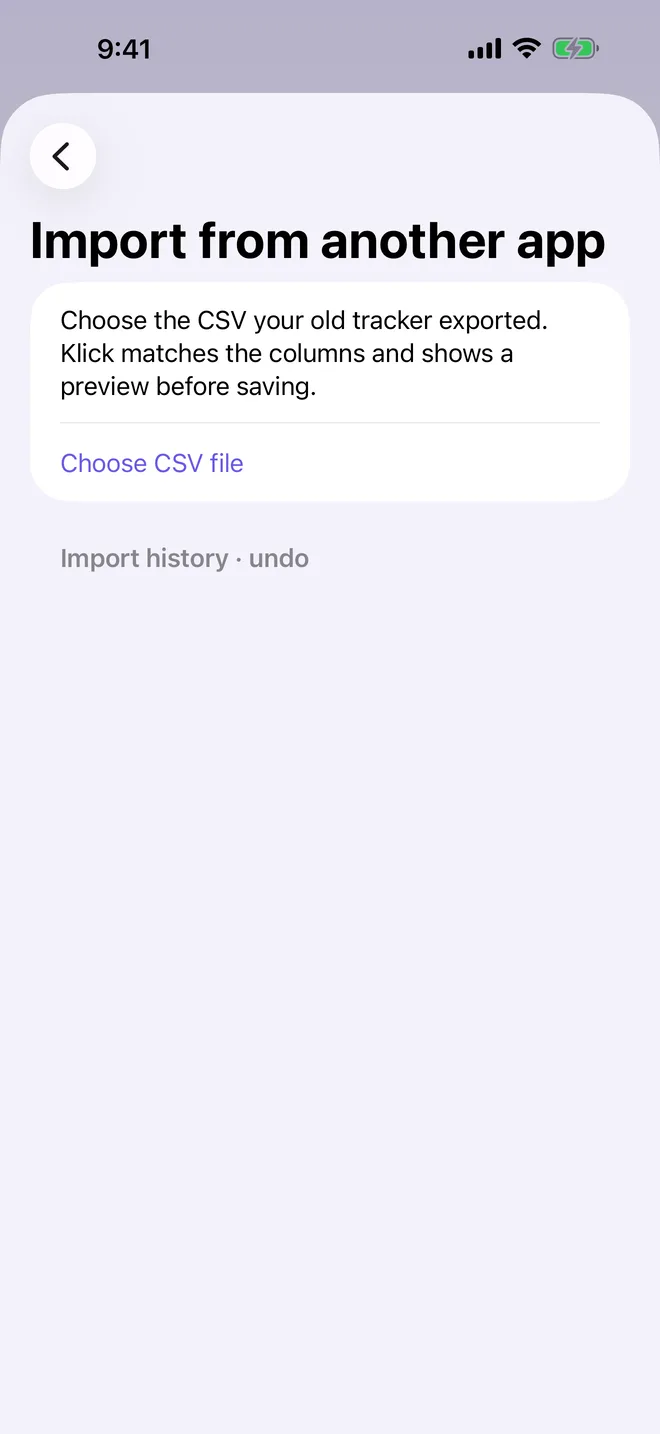
1Import from another app
In Settings, tap Import from another app, then Choose CSV file and pick the file your old tracker exported. Klick matches the columns and shows a preview before anything is saved.
-
2Back up or restore
Tap Backup & import, then Save backup to save your whole record as a Klick file. Turn on Include progress photos if you want them in it. Import Klick backup restores one and only adds what is missing.
A backup contains personal health information. Save it somewhere you trust.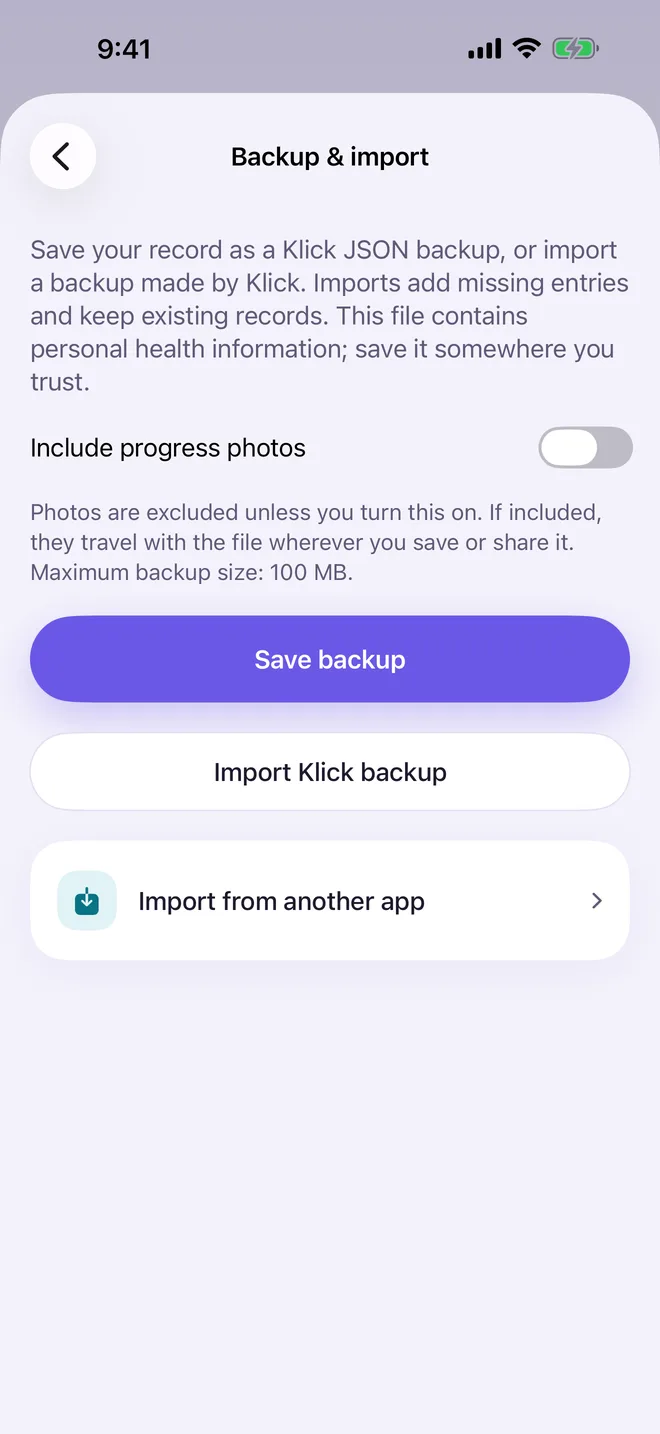
-
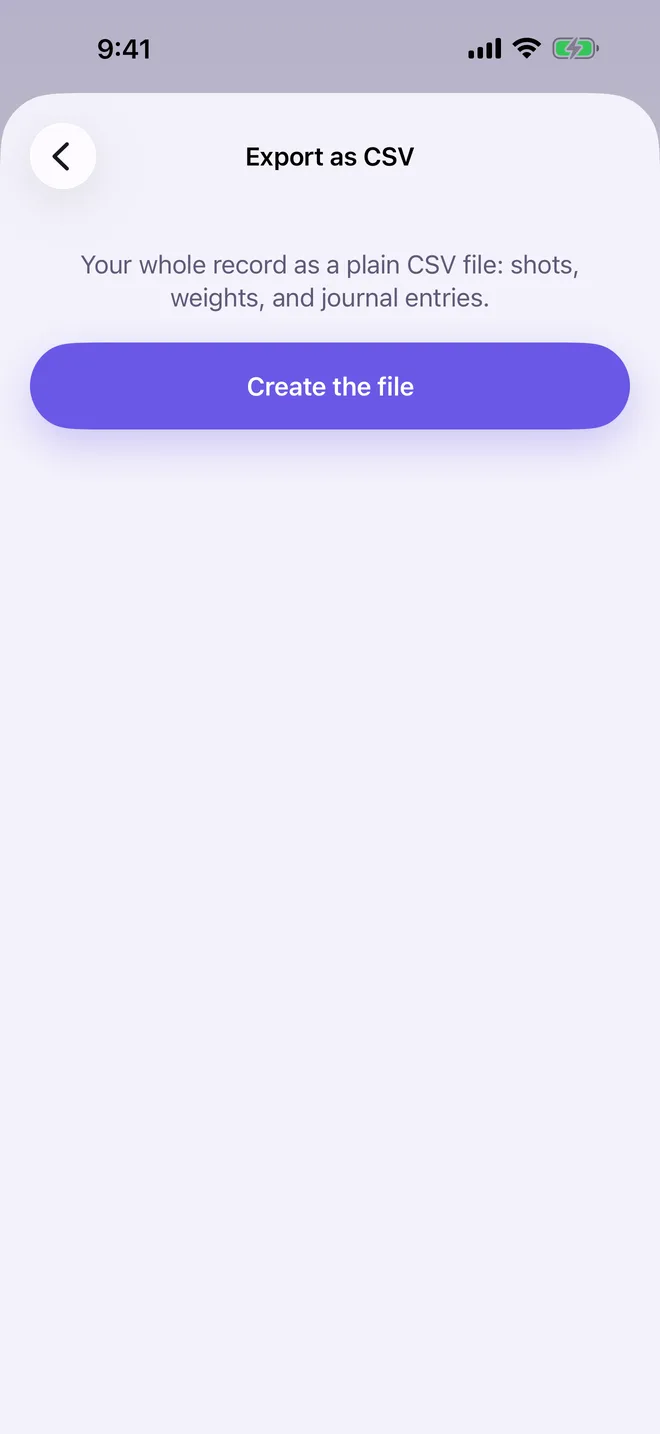
3Export as CSV (Klick Pro)
Tap Export as CSV, then Create the file for a spreadsheet of your shots, weights and journal entries.
More in Your record
Still stuck?
Tell us what you see — a screenshot helps — and a person will reply by email, usually within a day.